Section 01
The gap between the canvas and the code
Most design tools and most codebases describe the same product in two different languages. The canvas holds frames, layers, and styles; the repository holds components, props, and CSS. Neither artifact can read the other, so every move between them is a translation: export the frame, write the redline, re-implement the layout, screenshot the result, and explain in a comment why the spacing is different. The translation is slow the first time and painful every time after, because the two artifacts immediately start to drift.
Coding agents made the gap more visible, not smaller. An agent can build a competent component from a screenshot, but a screenshot is the least informative version of a design: it carries no token names, no layout intent, no component boundaries, and no record of which values were deliberate. The companion article on screenshot-to-implementation covers that failure mode in detail — the short version is that pixels in, plausible guesses out. What the agent actually needs is the design artifact itself, in a form it can parse and modify.
A small group of tools now builds for exactly that. Paper treats the canvas as HTML and CSS, so the design is already markup. Pencil keeps a vector design file inside your repository as readable JSON and exposes it to agents through the same protocol your coding agent already speaks. Figma, the incumbent, has moved in the same direction with its own MCP server. This article is about what changes when the canvas becomes something your agent can read and write directly — and what does not change, because taste, judgment, and review are still yours.
Everything here is grounded in the official documentation and pricing pages of the tools as of June 2026, plus independent practitioner write-ups linked in the resources section. Pricing and capability claims are date-stamped, because all three vendors are moving quickly.
Section 02
What makes a canvas connected
A connected canvas is not a plugin or an exporter. It is a design surface that meets three conditions. First, the artifact is something an agent can natively manipulate — HTML and CSS in Paper's case, a JSON-based .pen file in Pencil's case — rather than a proprietary binary that needs an API translation before an agent can reason about it. Second, the surface exposes read and write access through the Model Context Protocol, so the same agent that edits your components can inspect a frame, take a screenshot of it, and push a change back. Third, the human and the agent see the same surface update: when the agent writes, the designer watches the canvas change, and when the designer drags a frame, the agent's next read reflects it.
Those three conditions produce the workflow this article teaches: the round trip. You design a section on the canvas with named layers and shared variables. The agent reads the structure, the variables, and a screenshot, then generates a component in your repository that maps the canvas variables to CSS custom properties. You edit the component the way you would edit any code — change a radius, rewrite a label — and the agent applies the same change back to the canvas, so the design file does not silently fall behind the implementation. A final render-versus-canvas check closes the loop.
The round trip matters more than the generation step. Plenty of tools can turn a design into a first draft of code. Far fewer can keep the design and the code describing the same thing a month later, after a dozen small changes have landed on whichever side was more convenient that day. The loop in the diagram below is the whole argument of this article in one picture.
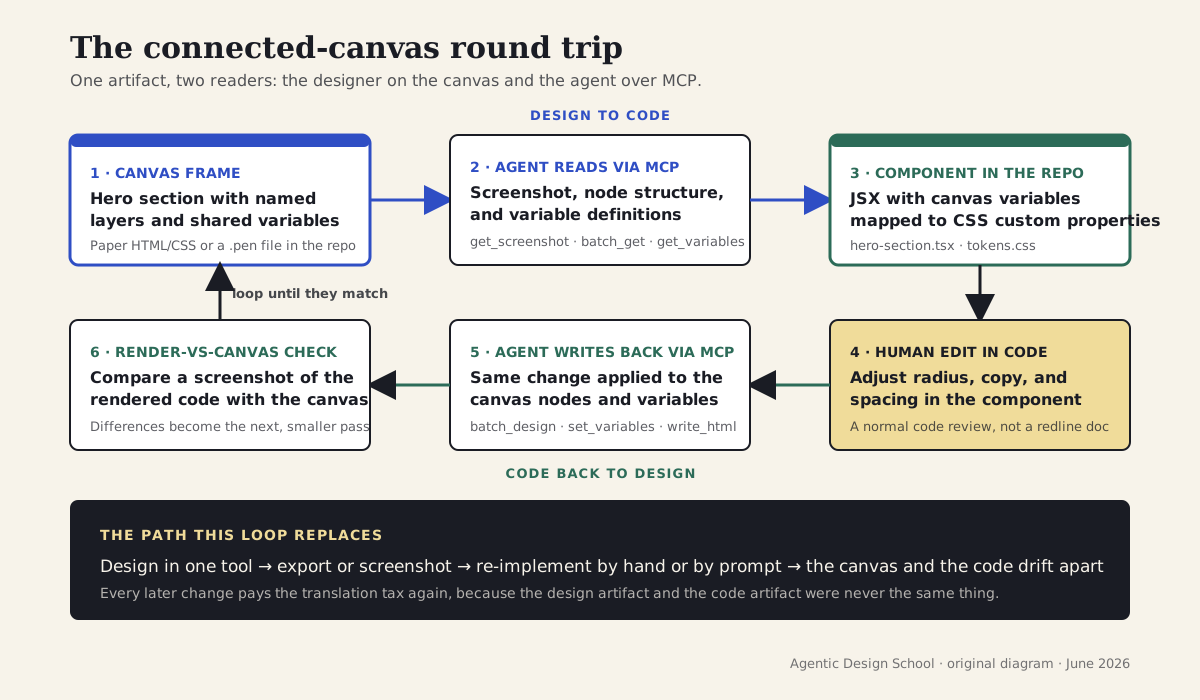
One artifact, two readers: the designer works on the canvas, the agent works over MCP, and a render-vs-canvas check closes the loop. The band underneath is the export-and-handoff path the loop replaces.
Section 03
What exists publicly, verified June 2026
Paper (paper.design) is a design canvas whose layers are HTML and CSS. The web app is where most design work happens; the desktop app, Paper Desktop, is what matters for agents, because it runs a local MCP server at http://127.0.0.1:29979/mcp whenever a file is open. The server is bidirectional: an agent can pull JSX, computed styles, and screenshots out of the canvas, and write HTML, styles, and new artboards back into it. Paper's documentation lists roughly two dozen MCP tools as of June 2026 — granular, one-job tools rather than a few broad ones. Public pricing now exists: a free tier with a weekly cap of around one hundred MCP tool calls, and a Pro plan at about US$20 per month (less on annual billing) that effectively removes the cap and adds video export and unlimited storage, as of June 2026. Paper's spring 2026 build log also added Snapshot, which imports an existing webpage into the canvas as editable layers — a useful code-to-design entry point — along with team collaboration and SVG generation.
Pencil (pencil.dev) takes the opposite architectural bet. It is a vector design canvas that runs as a VS Code or Cursor extension, with a desktop app as well, and the design file — a .pen file — lives inside your repository like any other source file. The extension bundles the MCP server, so an agent running in the same editor can open the document, read and write nodes, manage shared variables, take screenshots of frames, and export renders. Pencil is free during early access as of June 2026, with no public paid tiers yet; the team has been clear that free is not the long-term model, so treat that as a snapshot, not a promise. A companion CLI on npm covers validating and exporting .pen files in scripts and CI. The format-level story of .pen and its open-source sibling — why a diffable design file changes review culture — is covered in the design-as-code article on this site, and this article will not repeat it.
Figma is the necessary third reference point, and the comparison has to be made carefully. Figma's Dev Mode MCP server is in beta as of June 2026: free during the beta, with usage-based pricing planned afterwards, and Figma now recommends its remote endpoint, which does not require the desktop app. Importantly, the server is no longer a read-only bridge — it has gained write capabilities for frames, components, and variables, and it can read Figma Make files. So the honest distinction between Figma and the connected canvases is not 'Figma can't write.' It is architectural: with Paper and Pencil, the artifact the agent edits is markup or a file in your repo; with Figma, the artifact stays in Figma's cloud and the agent works through an API translation layer. Both arrangements are legitimate. They optimize for different things, and the positioning section later in this article tries to be fair about which is which.
- Paper: HTML/CSS canvas, local MCP server from Paper Desktop at 127.0.0.1:29979, roughly two dozen tools, free tier with a weekly MCP-call cap, Pro around US$20/month (as of June 2026).
- Pencil: VS Code/Cursor extension plus desktop app, .pen design file in the repo, batch-style MCP tools, npm CLI for CI, free during early access (as of June 2026).
- Figma Dev Mode MCP: beta, free during beta with usage-based pricing planned, remote endpoint recommended, write support for frames, components, and variables.
- Format details for .pen and diffable design files are covered in the design-as-code article — this one focuses on the connected workflow.
Section 04
Two architectures, two tool surfaces
Paper and Pencil deliver the same promise — one artifact, shared by designer and agent — through opposite architectures, and the difference shapes how you work with each. Paper keeps the canvas in its cloud and gives the agent a local bridge to it: Paper Desktop runs the MCP server on your machine, the agent talks to localhost, and Paper synchronizes the result with the cloud document the rest of your team sees. Pencil keeps the canvas file in your repository and brings the editor to the code: the design opens inside VS Code or Cursor, the file is versioned with git, and the agent that edits your components is sitting in the same window as the canvas it is editing.
The tool surfaces diverge the same way. Paper exposes many narrow tools — one to fetch JSX for a selection, one for computed styles, one for a screenshot, one to write HTML, one to update styles, one to create an artboard, and so on. Prompts against Paper tend to read like a sequence of small, specific requests. Pencil exposes a handful of batch-style tools instead: one call that reads many nodes by pattern, one call that executes a script of insert, update, move, and delete operations, plus screenshots, layout snapshots, variable get and set, and node export. Prompts against Pencil tend to describe an outcome and let the agent compose the operation script.
Neither style is better in the abstract. The granular surface gives you predictable, auditable steps and is easier to permission tightly; the batch surface produces fewer round trips and suits larger edits. What matters for your choice is the artifact question underneath: if your deliverable is a marketing page or prototype that should ultimately ship as markup, Paper's HTML-native canvas removes a whole translation step. If your deliverable is product UI that lives and dies with a component library and code review, Pencil's repo-resident file means the design participates in the same pull requests as the code.
Section 05
MCP setup: Claude Code
Setup is short for both tools, and it is worth doing properly once rather than improvising per project. For Paper, install Paper Desktop (macOS or Windows — the web app does not expose an MCP endpoint), open the file you want the agent to work on, and the local server starts with it. Then register the server with Claude Code, either through Paper's official plugin marketplace or by adding the local HTTP endpoint manually. The plugin route also installs Paper-specific commands; the manual route is one line and works everywhere Claude Code does.
For Pencil, install the extension in VS Code or Cursor and open or create a .pen file. The extension bundles the MCP server, so an agent running inside that editor — Claude Code in the integrated terminal, or the editor's own agent — discovers the Pencil tools without a separate server process. Check Pencil's agent-integration documentation for the current connection steps for terminal-only setups, because the wiring has changed during early access and may change again.
Whichever tool you connect, keep the registration at the project level rather than buried in a personal global config. A project-scoped .mcp.json (or the equivalent for your CLI) means every collaborator — and every agent session — gets the same canvas connection, the same way a shared AGENTS.md gives them the same instructions.
# Route A — Paper's official plugin marketplace
claude plugin marketplace add paper-design/agent-plugins
claude plugin install paper

# Route B — register the local MCP endpoint directly
# (Paper Desktop must be running with a file open)
claude mcp add paper --transport http http://127.0.0.1:29979/mcp

# Confirm the server is registered and reachable
claude mcp list

# Project-scoped alternative: commit .mcp.json so every session
# and every collaborator gets the same connection
# .mcp.json
{
  "mcpServers": {
    "paper": {
      "type": "http",
      "url": "http://127.0.0.1:29979/mcp"
    }
  }
}
Section 06
MCP setup: a second CLI, and the connection test
The same canvas connects to other agent CLIs. Codex CLI reads MCP server definitions from its config.toml; for an HTTP server like Paper's, the most portable route as of June 2026 is a small stdio-to-HTTP bridge such as mcp-remote, which keeps the configuration identical across machines. Cursor and other MCP-capable editors follow the same pattern with their own JSON config. The point is that the canvas is not married to one agent: the connection is protocol-level, so the harness you build around it travels.
Before doing any real work, run a connection test that is trivial to verify by eye. The classic is 'create a small red rectangle on the canvas and tell me its node id.' It costs one tool call, proves the write path works, and fails loudly when the desktop app is not running, the file is not open, or the editor extension lost its session. Delete the rectangle and start working.
Three failure modes account for most setup trouble. The Paper server only exists while Paper Desktop is running with a file loaded — if the agent reports a connection refused on port 29979, that is almost always why. Linux is not supported for Paper Desktop, and running the agent inside WSL requires mirrored networking so localhost resolves to the Windows host. And both tools' sessions can drop silently after sleep or an editor restart; if reads start returning stale or empty results, re-run the connection test before debugging anything else.
# ~/.codex/config.toml
# Paper's MCP server is HTTP on localhost; mcp-remote bridges it
# to the stdio transport Codex expects.

[mcp_servers.paper]
command = "npx"
args = ["-y", "mcp-remote", "http://127.0.0.1:29979/mcp"]

# Connection test prompt (works in any connected CLI):
#   "Using the paper tools, create a 100x100 red rectangle on the
#    current artboard, tell me its node id, then delete it."
Section 07
Case study: a landing-section round trip
The rest of this article walks one small, complete round trip: a landing-page hero section designed on a canvas, turned into a JSX component, edited in code, and written back to the canvas, with a render-versus-canvas check at the end. One honesty note before the trace, because this site's editorial standard requires it: neither canvas tool could be driven from the environment this article was produced in — Paper requires its desktop app and an account, and the Pencil editor was not connected to this session — so the walkthrough below is a reproduction, written strictly against the officially documented tool surfaces of both products and the independent practitioner write-ups linked in the resources section, not a transcript of tool calls executed for this article. The prompts are the prompts you would run; the iteration counts describe the structure of the loop, not a measured benchmark. Where community write-ups report timings, they are attributed as such.
The scenario: a fictional hiking-log product needs a landing hero — a small badge, a serif headline, one paragraph of supporting copy, a primary and a secondary call to action. The design uses five shared variables on the canvas: a surface color, an ink color, a brand color, a control radius, and a section spacing value. The variables are the contract. They are what makes the round trip more than a one-off export, because both the component and the canvas will reference them rather than hardcoding values.
The trace below uses Pencil's tool names (batch_get, get_variables, get_screenshot, batch_design, set_variables) because its repo-resident file makes the loop easiest to show end to end. The same loop runs against Paper with its corresponding tools — get_jsx and computed styles on the way out, write_html and style updates on the way back — and the prompts change less than you might expect, because the prompts describe intent, not tool calls.
- Frame: landing/hero — badge, headline, supporting copy, primary and secondary CTA.
- Shared canvas variables: color/surface, color/ink, color/brand, radius/control, space/section.
- Deliverable: components/marketing/hero-section.tsx plus styles/canvas-tokens.css generated from the variables.
- Loop: read → generate → human edit → write back → render-vs-canvas check.
- Status: documentation-grounded reproduction, not an executed transcript — flagged here and in the research run's compliance notes.
Section 08
Design to code: reading the frame, generating the component
The first prompt does three things in one pass: it tells the agent which frame is in scope, which tools to use to understand it, and what the output contract is. Naming the frame matters — 'the frame named landing/hero' is unambiguous, while 'the hero I just made' forces the agent to guess from a layout snapshot. Asking for the variables first matters even more, because the variables become the CSS custom properties that keep the component honest. The explicit instruction not to hardcode any value that exists as a variable is the single highest-leverage line in the prompt; without it, agents reliably inline the resolved values and the contract dissolves.
On the read side, the agent combines three views of the same frame. The variable definitions give it the named values and their meanings. The node structure gives it hierarchy, layout direction, gaps, and text content — the things a screenshot cannot carry. The screenshot gives it what neither of the others can: a check on its own reading, because an agent that has misparsed a layout usually produces a description that visibly disagrees with the image. Good agents are explicitly told to compare the two before writing code.
The generation step then has very little left to invent. Layout intent comes from the frame's layout containers, values come from the variables, copy comes from the text nodes, and the component's job is to express all of that in the project's conventions — Tailwind for layout, CSS custom properties for everything that came from a variable, and the project's own file layout for where things go. The next section shows the kind of output this produces.
# 1 — Design to code: read the frame, generate the component
Open designs/trailhead.pen and work on the frame named "landing/hero".
Use get_variables to read the shared variables, batch_get to read the frame's
node structure, and get_screenshot so you can see the rendered frame.
Generate two files:
  - styles/canvas-tokens.css: one CSS custom property per canvas variable
  - components/marketing/hero-section.tsx: a HeroSection component using
    Tailwind for layout and the custom properties for color, radius, and
    section spacing.
Do not hardcode any value that exists as a canvas variable.
Before writing code, state how the frame is laid out and flag anything in
the structure that disagrees with the screenshot.

# 2 — Code back to design: after the human edit
I edited hero-section.tsx: the control radius is now 12px and the secondary
button copy is "See a sample log". Apply the same change to the canvas:
update the radius/control variable (not the individual nodes) with
set_variables, update the button text in "landing/hero" with batch_design,
then return a fresh get_screenshot of the frame.

# 3 — Verify: render vs canvas
Render HeroSection at 1440px wide and screenshot it. Compare it with the
canvas screenshot. List every visible difference larger than ~2px and any
text mismatch, say which side you believe is wrong, and propose the smallest
change that brings them back in line.
Section 09
The generated component: variables become custom properties
The excerpt below is the shape of output this prompt produces — trimmed, but representative of what the documented workflow generates and what you should hold the agent to. Two things are worth reading for. First, the variable mapping: every color, the radius, and the section spacing reference a CSS custom property whose name traces directly back to a canvas variable. When the canvas variable changes, regenerating one small CSS file updates the component without touching the JSX. Second, the division of labor: Tailwind utilities carry layout — flex direction, gaps, max widths — while the custom properties carry the values that the design owns. That split is what keeps the component reviewable: a reviewer can see at a glance which decisions came from the canvas and which came from the code.
Resist the temptation to let the agent 'clean up' the custom properties into theme constants on the first pass. The verbosity is the point during the round-trip phase: it preserves the one-to-one mapping that makes write-back and drift-checking mechanical. Folding the values into your real token system is a deliberate later step — and if you already maintain a token pipeline, the canvas variables should map onto those tokens rather than spawning a parallel set, which is exactly the boundary where the design-as-code article picks up.
/* styles/canvas-tokens.css — generated from the canvas variables */
:root {
  --canvas-color-surface: #f6f2e9;   /* color/surface */
  --canvas-color-ink: #20222b;       /* color/ink */
  --canvas-color-brand: #3450c8;     /* color/brand */
  --canvas-radius-control: 8px;      /* radius/control */
  --canvas-space-section: 96px;      /* space/section */
}

// components/marketing/hero-section.tsx (excerpt)
export function HeroSection() {
  return (
    <section
      className="flex flex-col items-start gap-6 px-8 py-[var(--canvas-space-section)]"
      style={{
        backgroundColor: "var(--canvas-color-surface)",
        color: "var(--canvas-color-ink)",
      }}
    >
      <p
        className="rounded-full border-2 px-3 py-1 text-sm font-semibold"
        style={{ borderColor: "var(--canvas-color-ink)" }}
      >
        Field test 03 — open beta
      </p>
      <h1 className="max-w-2xl font-serif text-5xl leading-tight">
        Plan the route. Log the walk. Keep the notes.
      </h1>
      <p className="max-w-xl text-lg opacity-80">
        Trailhead keeps route plans, weather windows, and field notes together,
        so the next trip starts from the last one.
      </p>
      <div className="flex gap-3">
        <a
          href="/signup"
          className="px-5 py-3 font-semibold text-white"
          style={{
            backgroundColor: "var(--canvas-color-brand)",
            borderRadius: "var(--canvas-radius-control)",
          }}
        >
          Start a trip log
        </a>
        <a
          href="/example"
          className="px-5 py-3 font-semibold"
          style={{
            border: "2px solid var(--canvas-color-ink)",
            borderRadius: "var(--canvas-radius-control)",
          }}
        >
          See an example
        </a>
      </div>
    </section>
  )
}
Section 10
Code back to design: the human edit and the write-back
The middle of the loop is the part most design-to-code tools skip: a person changes the code. In this scenario the edit is small and typical — the control radius goes from 8px to 12px after seeing the buttons in a real browser, and the secondary call to action is rewritten from 'See an example' to 'See a sample log' because the original was vague. In a disconnected workflow, those two changes are precisely the kind that never make it back to the design file. They are too small to justify opening the design tool, so the canvas quietly becomes a historical document.
With a connected canvas, the write-back is one prompt — the second prompt in the block above. Two details in it carry most of the value. Asking the agent to update the radius variable rather than the individual button nodes keeps the change systemic: every other control on the canvas that references radius/control picks it up, exactly as the CSS custom property did in code. And asking for a fresh screenshot after the write turns the change into something you can see and accept, rather than something you have to trust. In Pencil's tool surface this lands as a set_variables call plus a small batch_design script that updates the text node; in Paper, the same intent lands as a style update and a text-content update against the selected layers.
This is also where the canvas earns its place in review. The .pen file change shows up in the same pull request as the component change, so a reviewer sees the design and the code move together — or notices that one moved without the other, which is the drift the loop exists to prevent. Paper's cloud document does not give you a git diff, but the before-and-after screenshots serve the same review function in the conversation.
Canvas frame: landing/hero with five shared variables (surface, ink, brand, control radius, section spacing) and named text layers
Agent read: variable definitions, node structure with layout direction and gaps, and a frame screenshot to cross-check its own parsing
Generated: styles/canvas-tokens.css (one custom property per variable) and hero-section.tsx mapping every designed value to a custom property
Human edit in code: radius/control 8px → 12px, secondary CTA copy rewritten
Write-back: variable updated (not individual nodes) plus one text-node change; fresh canvas screenshot returned for approval
Verification pass: render at 1440px vs canvas screenshot — caught a wrapped headline caused by a max-width the agent had narrowed without being asked
The round trip summarized as a board: what the canvas held, what the agent read, what it generated, what the human changed, and what the verification pass caught. This board describes the article's reproduced workflow; it is not a vendor screenshot.
Section 11
What goes wrong, and what the loop costs
An honest version of this workflow includes its failure modes, and they are consistent across the practitioner write-ups this article draws on. The most common is the layout misread: a frame that looks like a tidy column but is actually a pile of absolutely positioned layers produces a component full of magic-number offsets, because the agent faithfully reproduced a structure that was never sound. The fix is on the canvas, not in the prompt — rebuild the frame with layout containers and let spacing come from gaps, then re-run the read. The second is the systemic-versus-local trap shown in the write-back step: an agent told to 'make the radius 12' will happily edit three button nodes and leave the variable untouched, so the canvas looks right while the contract is broken. Prompts that name the variable to change are the defense.
The verification pass catches a third class of problem: silent improvements. In the reproduced trace above, the rendered component wrapped the headline earlier than the canvas did, because the agent had narrowed a max-width 'for readability' without being asked. The render-versus-canvas comparison is what surfaces those — an agent asked to list visible differences larger than a couple of pixels will report its own embellishments, and you decide which side wins. Community write-ups describe the same practice with a literal overlay: a screenshot of the rendered code placed at half opacity over the canvas frame, which is the same visual-QA habit covered in this site's article on agent-assisted visual review.
The cost side: a loop like this is three to five agent passes for a section of this size — read and generate, write back, verify, plus a fix pass when one of the failures above shows up. On Paper's free tier, every one of those passes spends tool calls against the weekly cap, which is generous for evaluation and tight for production use; that is precisely what the Pro tier is priced for, as of June 2026. The bigger cost is the discipline the loop demands. It only protects you if write-backs actually happen, which means treating 'the canvas is stale' as a defect to fix in the same sitting, not a chore for later.
Section 12
Good vs bad usage on a connected canvas
Connected canvases reward the same hygiene that good component code rewards, because the agent reads the canvas the way a compiler reads source: structure first, intentions never. The difference between a frame that round-trips cleanly and one that produces brittle output is rarely the prompt — it is how the frame was built and named before the agent arrived.
The table below collects the patterns that consistently separate clean round trips from messy ones. None of them are exotic; they are the canvas equivalent of writing functions a colleague can read.
Good: layout containers with direction and gaps, so spacing intent survives the read
Good: semantic names like landing/hero, cta-primary, badge — prompts can reference them precisely
Good: shared variables for every value the code should treat as a token
Good: prompts that name the frame and tell the agent which reads to perform
Good: every accepted code change triggers a write-back in the same session
Good: a render-vs-canvas comparison before the work is called done
The agent reproduces the structure it finds. Clean structure in, clean component out — and the reverse.
Section 13
Where these fit next to Figma
The fair comparison is architectural, not a feature checklist — feature checklists between fast-moving tools are stale before they are published. Figma's Dev Mode MCP server can read designs, read Make files, and, in beta, write frames, components, and variables, so the lazy framing of 'Figma is the read-only one' is simply wrong as of June 2026. What does not change with any beta release is where the artifact lives and what it is. With Paper, the artifact is markup synchronized through a local bridge; with Pencil, it is a JSON file in your repository; with Figma, it is a document in Figma's cloud that the agent reaches through an API translation layer. Each position has real consequences for review, versioning, offline work, vendor dependence, and how much fidelity survives the trip.
Figma remains the right call in clearly identifiable situations: an established team library and design system already living there, true multiplayer design with non-engineering stakeholders, the plugin and FigJam ecosystem, and organizational requirements around roles and audit. A connected canvas is the better fit when the deliverable is close to code, the people involved are comfortable in a repository, and the cost you most want to eliminate is the translation step between the design artifact and the shipped artifact. Plenty of teams will sensibly run both: Figma as the system of record for the design organization, a connected canvas as the working surface for the slice of the team that ships marketing pages or prototypes with an agent in the loop.
The table below is the positioning summary, verified against the vendors' official documentation in June 2026. Expect the details — especially pricing and the scope of Figma's write support — to change; the architectural rows are the durable ones.
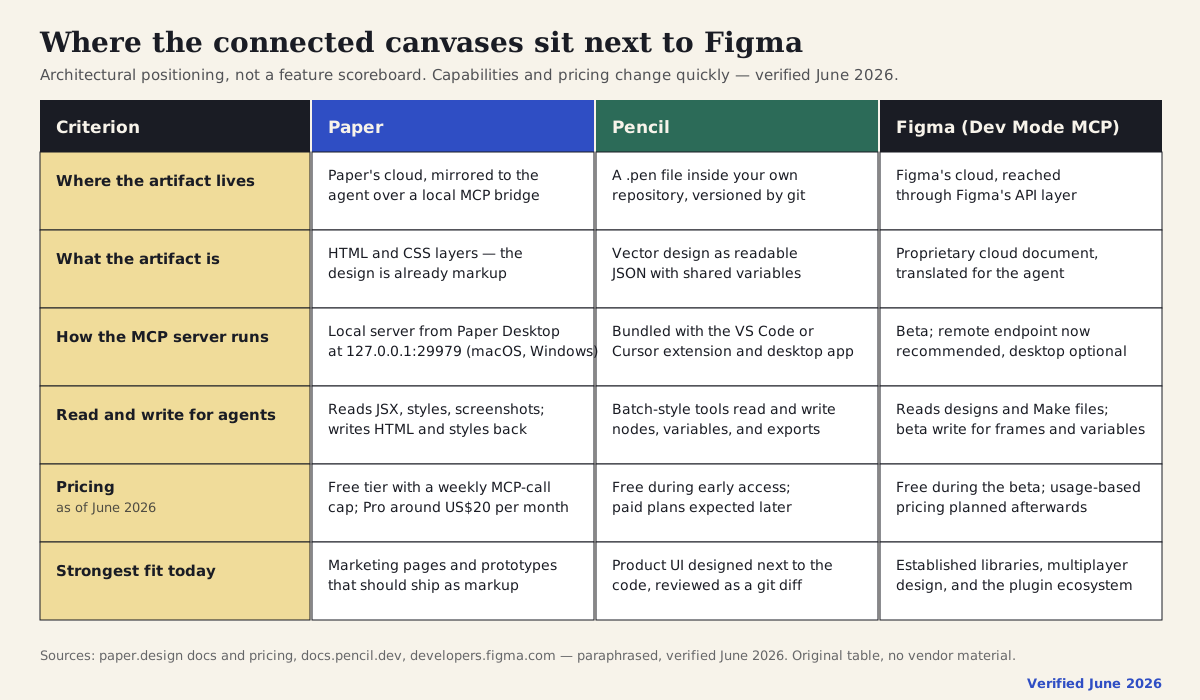
Architectural positioning across Paper, Pencil, and Figma's Dev Mode MCP server. Pricing and beta capabilities move quickly; verified June 2026 against official documentation.
Section 14
Risks, limits, and anti-patterns
Platform and pricing limits first, because they decide whether the workflow is even available to you. Paper's MCP server only exists where Paper Desktop runs — macOS and Windows — so Linux-based development environments are out except through WSL with mirrored networking, and the web app offers no MCP endpoint at all. Paper's free tier meters MCP tool calls weekly, which an agent loop can burn through quickly; budget for the Pro tier if the workflow becomes routine. Pencil is free during early access as of June 2026, which is another way of saying its pricing is undecided: an early-access tool can change its terms, its file format details, or its tool names between releases, and a workflow you standardize on today may need maintenance attention. Figma's MCP pricing is similarly unsettled — free during the beta with usage-based pricing planned. None of these are reasons to avoid the tools; all of them are reasons to date-stamp your assumptions and keep the round trip itself portable across canvases.
Capability limits next. Agents still misread complex layouts — overlapping layers, masked groups, intricate responsive behavior — and the more a frame relies on visual cleverness rather than structure, the more the generated component degrades into absolute positioning and guesswork. A connected canvas is also not a design system by itself: variables on a canvas are a contract for that file, not governance for a product. If the canvas variables and your real token pipeline disagree, the pipeline should win, and the canvas should be regenerated from it rather than the other way around. And the prototype-to-production boundary still exists — a hero section that round-trips beautifully is still a prototype until it has met accessibility checks, content review, and the rest of the production gate, which is its own article on this site.
Finally, the anti-patterns. Do not use a connected canvas as a one-way code generator and skip the write-back; you have rebuilt the handoff with extra steps, and the canvas will be stale within a sprint. Do not let the agent edit both sides in the same pass without a human between them — the loop's value is that a person reviews each direction, and an agent reconciling its own output on both surfaces can launder a mistake into both artifacts at once. Do not paste secrets or production data into canvas text layers that an agent will read and copy into code. And do not adopt either tool because the demo was impressive: adopt one because the artifact it produces — markup or a repo file — is the artifact your team actually wants to own.
- Paper MCP requires the desktop app on macOS or Windows; no Linux, no web-app endpoint; free-tier MCP calls are capped weekly (as of June 2026).
- Pencil is early access: free today, pricing and details subject to change; keep your workflow portable.
- Figma's Dev Mode MCP is in beta with usage-based pricing planned; re-verify capabilities before relying on them.
- Canvas variables are not a design system; your token pipeline remains the source of truth.
- Skipping the write-back, letting the agent close its own loop unreviewed, and tool choice by demo are the three habits that undo the benefit.
Section 15
A reusable round-trip workflow
Everything above compresses into a workflow you can run the same day you connect a canvas. It assumes nothing about which canvas you chose — only that the agent can read structure, read variables, take screenshots, and write back.
Start smaller than feels necessary. One section, five variables, one component. The round trip is a habit before it is an architecture, and the habit is what keeps the two artifacts honest after the novelty wears off.
# Connected-canvas round trip — pre-flight

## Choose and connect
- [ ] Pick the canvas that matches the artifact you want to own:
      markup that ships (Paper) vs a design file in the repo (Pencil)
- [ ] Register the MCP server at project scope (.mcp.json / config.toml), not per machine
- [ ] Run the trivial write test (red rectangle in, node id back, delete it)

## Prepare the frame
- [ ] Layout containers and gaps, no absolute positioning unless intentional
- [ ] Semantic names for the frame and key layers (landing/hero, cta-primary)
- [ ] Shared variables for every value the code should treat as a token

## Run the loop on one section
- [ ] Read: variables + structure + screenshot, agent states the layout before coding
- [ ] Generate: variables become CSS custom properties; no hardcoded token values
- [ ] Edit: make the human change in code, as a normal review
- [ ] Write back: change variables (not nodes) where the change is systemic
- [ ] Verify: render-vs-canvas screenshot comparison; differences become the next pass

## Keep it honest
- [ ] Every accepted code change triggers a write-back in the same session
- [ ] Date-stamp pricing/capability assumptions; re-verify quarterly
- [ ] Canvas variables defer to the real token pipeline when they disagree
Section 16
Resources
The links below are the primary documentation this article was verified against, plus independent practitioner write-ups showing the round trip working outside vendor demos. Capabilities and pricing for all three vendors were checked in June 2026; if you are reading this much later, check the official pages first.
Projects to inspect
Sources
Sources & further reading
- Paper MCP documentation
Official documentation for Paper's local MCP server: endpoint, setup per agent platform, and tool reference.
- Paper pricing
Paper's pricing page; source for the free-tier MCP-call cap and Pro plan figures cited as of June 2026.
- Paper build log
Paper's public build log; source for the Snapshot, team collaboration, and SVG-generation releases.
- paper-design/agent-plugins
Official agent plugin marketplace repository used for the Claude Code install route.
- Pencil agent integration documentation
Pencil's documentation for connecting coding agents and the MCP tool surface referenced throughout the case study.
- @pencil.dev/cli
Pencil's npm CLI for validating and exporting .pen files in scripts and CI.
- Figma Dev Mode MCP server documentation
Figma's developer documentation for the Dev Mode MCP server: beta status, remote endpoint, and write capabilities.
- Guide to the Figma MCP server (Figma Help Center)
Figma's user-facing guide to the MCP server, used to keep the positioning section conservative and current.
- Paper vs Pencil comparison (Brendan O'Connell)
Independent hands-on comparison of Paper and Pencil as MCP-connected design canvases.
- Claude Code and Pencil walkthrough (Classmethod)
Community walkthrough of designing a page with Claude Code driving Pencil over MCP.
- Designing with Pencil and Claude Code (Jerad Bitner)
Practitioner write-up of a Pencil and Claude Code workflow, including render-overlay verification.
- Paper vs Figma Make (designproject.io)
Same-prompt comparison of Paper and Figma Make used as background for the positioning discussion.


