Section 01
The copy-paste tax
If you have used a coding agent for design work without MCP, you already know the tax. You export a frame as a PNG and drag it into the chat. You copy hex values out of the inspect panel one at a time. You screenshot a Miro board and hope the agent can read sticky-note handwriting at 40 percent zoom. Then you switch to the browser, screenshot the half-built page, paste that in too, and ask the agent to compare two images it can barely see. Every handoff between your design tools and the agent is manual, lossy, and yours to repeat tomorrow.
The cost is not just time. The agent is working from degraded copies of your intent. A flattened PNG has no token names, no spacing values, no component boundaries, no auto-layout rules. A pasted screenshot of the live page has no breakpoints other than the one you happened to capture. So the agent guesses, and you spend review cycles correcting guesses you caused by feeding it pictures of data instead of the data.
Several articles on this site already assume a better setup. Visual QA with Agents assumes the agent can capture the page itself. Screenshot to Implementation assumes it can read the design closely enough to preserve intent. The mechanism that makes both honest rather than hopeful is the Model Context Protocol — MCP — and it is much less mysterious than the acronym suggests. This article explains what it is in plain language, which design servers are worth connecting as of June 2026, how to configure them on each major agent platform, how to chain two servers into a real review workflow, and how to do all of it without handing a third-party server the keys to your client work.
Section 02
What MCP actually is, in plain language
MCP is a shared way for an agent to call other software. A program that speaks the protocol on the tool side is called a server. It announces a small list of named functions — the spec calls them tools — along with what each one needs as input and what it returns. Your agent platform speaks the protocol on the other side as a client. When you ask the agent to review a page against a Figma frame, it looks at the tools its connected servers offer, picks the relevant ones, calls them mid-conversation, and the results come back into its context window the same way a file it just read would. That is the entire trick. No plugin marketplace, no per-tool integration code, no vendor-specific SDK in your project.
Servers can also expose resources, which are readable pieces of data such as a file or a board, and prompts, which are pre-written workflows the server suggests. For design work you will spend almost all of your attention on tools: get the design context for this frame, return the variables, take a screenshot, write this HTML to the canvas, navigate the browser to this URL.
The one distinction worth internalizing is local versus remote, because it predicts both how a server behaves and how it fails. Local servers run on your machine — either as a small process your agent starts (the configuration says, in effect, run this command), or inside a desktop app that listens on localhost. Paper, Pencil, Playwright and Chrome DevTools all work this way, and they operate on whatever file or page you have open, which means the app has to be running. Remote servers live at a URL — Figma's hosted server and Miro's are the prominent design examples — and you authenticate with OAuth in the browser, the same consent screen flow you know from connecting any two web products. They work from anywhere but bring rate limits and the question of what data leaves your machine.
The diagram below is the picture to keep in your head. One agent, one protocol, several servers, and each server is a narrow door into a design surface or the live page.
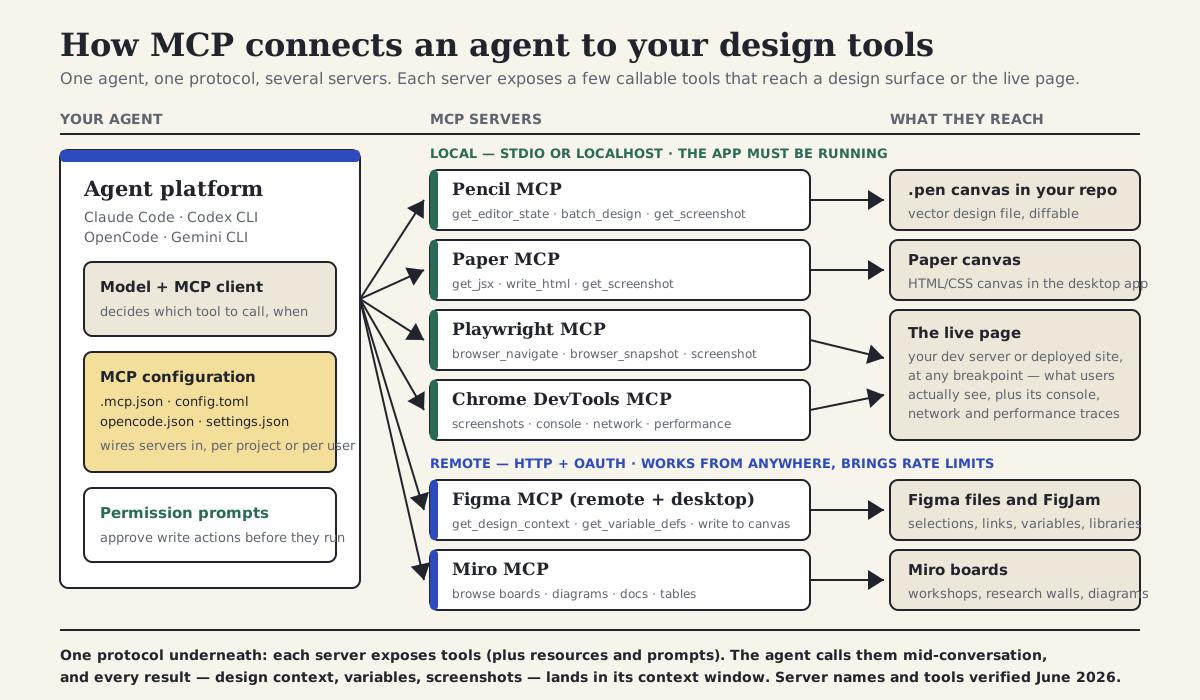
The agent's MCP configuration wires in servers; each server exposes a few tools that reach a canvas, a file, a board or the live page. Tool results land in the agent's context.
Section 03
Who governs the protocol, and why a designer should care
A reasonable first question is whether MCP is one vendor's idea that the rest of the industry will route around. As of June 2026 the answer is no, and it is checkable. Anthropic released the protocol in late 2024, and in December 2025 donated it to the Agentic AI Foundation, a directed fund under the Linux Foundation co-founded by Anthropic, Block and OpenAI with backing from Google, Microsoft, Amazon Web Services and others. Governance now runs through that foundation rather than any single model vendor, and every major agent platform a designer is likely to touch — Claude Code, Codex CLI, OpenCode, Gemini CLI, Cursor, VS Code's Copilot — ships an MCP client.
The current ratified specification is the 2025-11-25 revision, which added asynchronous tasks, better support for stateless servers, and an official community registry at registry.modelcontextprotocol.io where you can check whether a server is published by the vendor it claims to represent. A release candidate for the next revision, dated 2026-07-28, is already public; it reworks parts of the wire protocol but does not change the mental model in this article. If you are reading this long after mid-2026, assume the version numbers have moved and the architecture has not.
Why should a designer care about governance at all? Because connecting your design tools to an agent is an investment. You will write configuration, build team conventions, maybe build a workflow this site would call a harness around specific servers. A protocol with neutral governance, an official registry, and adoption across competing platforms is a much safer place to make that investment than a proprietary plugin system that one pricing change could strand.
Projects to inspect
Section 04
The design server landscape, as of June 2026
The useful design-relevant servers split cleanly into three groups: design canvases and boards, the browser, and everything else. Within the first two groups, every server worth starting with is official — published and maintained by the vendor whose tool it reaches — which matters more than it might sound, because an MCP server sits inside your agent's trust boundary.
Figma's official server deserves the most careful description because it is the one most often described wrongly. It is in beta, and it comes in two forms: a remote server hosted by Figma that any plan can connect to with OAuth, and a server inside the Figma desktop app for paid Dev and Full seats. Its read tools return a structured representation of a selection or a pasted link — component structure, variables in use, a screenshot, design-system metadata — which is dramatically better input for design-to-code work than an exported image. And it is not read-only: the remote server can write to the canvas, creating frames, components and variables in Design files and stickies, sections and connectors in FigJam, and it can generate diagrams. Rate limits depend on seat type and the pricing language is still beta-flavored, so check the current docs before you plan a team workflow around heavy use.
Miro's official server makes boards readable and writable — browsing board content, creating diagrams, docs and tables — which is most interesting for the research and synthesis work designers already do in Miro: turning a workshop wall into a structured summary, or a flow diagram into an early spec. Paper and Pencil are the connected-canvas pair: Paper runs a local server inside its desktop app with a tight read-JSX, write-HTML loop, and Pencil exposes its diffable .pen vector canvas to agents through an IDE extension, a desktop app and a headless CLI. Their deeper round-trip workflows are covered in the connected-canvas material on this site; here it is enough to know they are official, local, and capable of both reading and writing the canvas.
The browser servers are the half of the story designers overlook. Playwright MCP, from Microsoft, drives a real browser through its accessibility tree: navigate, resize, click, snapshot, screenshot. Chrome DevTools MCP, from Google, attaches to Chrome and reads what DevTools can read: console errors, network requests, performance traces, screenshots. Neither touches your design files. Together with a design server they complete the loop this article's case study traces — read the intent from the design tool, observe the reality in the browser, report the difference. Beyond these, community servers exist for most gaps (an API-key-based Figma server predates the official one, and OpenPencil ships its own), but treat them as third-party dependencies and check the registry before installing — more on that in the security section.
- Figma MCP (official, beta): remote server plus desktop server; reads design context, variables, screenshots and design-system data; writes to canvas and FigJam; rate limits vary by seat type.
- Miro MCP (official): reads boards; writes diagrams, docs and tables; OAuth; ships a Claude Code plugin alongside the server.
- Paper MCP (official, local): runs inside Paper Desktop; reads JSX and computed styles, writes HTML and style updates; the app must be open.
- Pencil MCP (official, local): reads and edits the .pen canvas in your repo, gets and sets variables, takes screenshots, exports; available through an IDE extension, desktop app and headless CLI.
- Playwright MCP (official, Microsoft): drives Chromium, Firefox or WebKit; navigation, snapshots and screenshots for the implementation side of any review.
- Chrome DevTools MCP (official, Google): console, network, performance and screenshots from a real Chrome instance.
- Community servers: useful for gaps, but verify the publisher in the official registry and treat them like any other dependency you would audit.
Projects to inspect
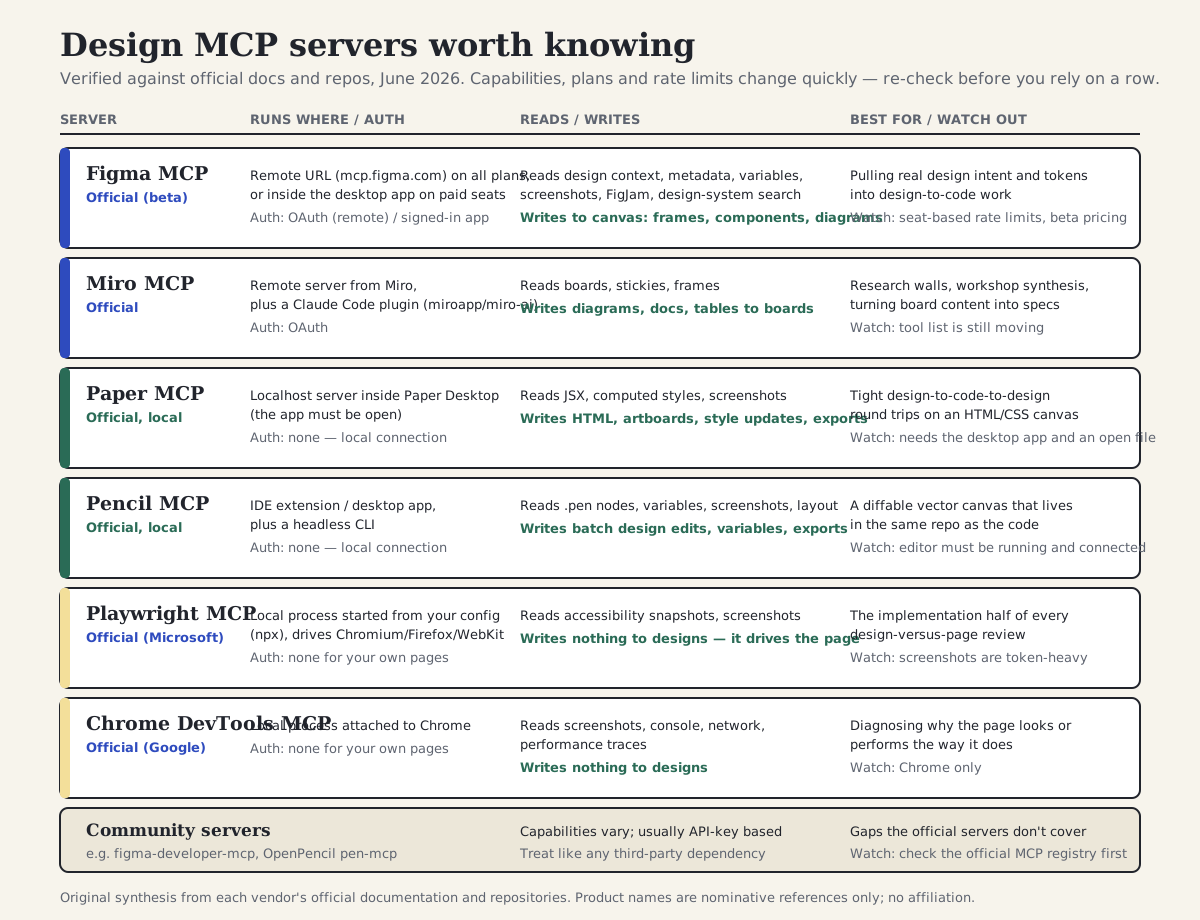
Official status, where each server runs, authentication, read and write capabilities, best uses and caveats — verified against official docs and repos in June 2026.
Section 05
Configuring a server: one pattern, four dialects
Every agent platform asks you for the same three facts about a server: what to call it, how to start or reach it, and what credentials it needs. A local server is a command to run; a remote server is a URL plus an OAuth flow or a token. Once you see that triple, the per-platform differences stop being intimidating — they are the same sentence in four dialects, written into four differently named files.
Claude Code is the most common starting point for readers of this site, so here is its dialect first. The claude mcp add command registers a server at one of three scopes: local (just you, just this project), user (you, every project) and project. Project scope is the one teams should care about, because it writes a plain .mcp.json file at the repo root that you commit — the same logic as a checked-in DESIGN.md. A teammate who clones the repo gets the same servers after a one-time approval prompt. The /mcp command inside a session shows which servers are connected, lets you authenticate the OAuth ones, and lists the tools each exposes — worth running once after setup just to see how small these tool lists really are.
The example below wires up the three servers used later in this article: a design canvas, a browser, and Figma's remote server. The Figma entry only needs a URL because the server is remote; the first time the agent uses it you will be sent through Figma's standard OAuth consent screen in your browser. These snippets were written for this article against the documentation current in June 2026 — the shapes are stable, but check your platform's docs if a key name has drifted by the time you read this.
Projects to inspect
{
  "mcpServers": {
    "pencil": {
      "command": "npx",
      "args": ["@pencil.dev/cli", "mcp"]
    },
    "playwright": {
      "command": "npx",
      "args": ["@playwright/mcp@latest"]
    },
    "figma": {
      "type": "http",
      "url": "https://mcp.figma.com/mcp"
    }
  }
}

# or add them one at a time, choosing the scope explicitly:
$ claude mcp add --scope project playwright -- npx @playwright/mcp@latest
$ claude mcp add --scope project --transport http figma https://mcp.figma.com/mcp

# inside a session: check status, run OAuth, list tools
> /mcp
Section 06
The same servers on Codex CLI, OpenCode and Gemini CLI
The other three platforms express the identical triple — name, how to reach it, credentials — in their own configuration files. Codex CLI keeps MCP servers in TOML, in the config.toml file under your home directory's .codex folder, one table per server; the codex mcp add command writes the same entries for you, and the configuration is shared with the IDE extension. OpenCode uses a top-level mcp block in opencode.json, with an explicit type of local or remote and an enabled flag, which makes it the most readable dialect to review in a pull request. Gemini CLI uses an mcpServers block in settings.json, either per user or per project, with a command for local servers and a URL field for remote ones, plus a built-in allowlist setting that we will come back to in the security section.
Two honesty notes on the snippets below. First, they were written for this article from each platform's official documentation as of June 2026, not copied from vendor examples; key names occasionally change between releases, so treat the docs as the tiebreaker. Second, remote-server and OAuth support has historically landed at different times on different platforms — if a remote entry does not work on your version, the local-command form of the same vendor's server, where one exists, is the fallback.
The practical takeaway is portability. Your investment is in knowing which servers matter for your work and what their tools can do. Re-expressing that knowledge in a different dialect when you move platforms — or when half your team uses a different agent — is a fifteen-minute job, not a migration.
Projects to inspect
# ~/.codex/config.toml — Codex CLI
[mcp_servers.playwright]
command = "npx"
args = ["@playwright/mcp@latest"]

[mcp_servers.figma]
url = "https://mcp.figma.com/mcp"

// opencode.json — OpenCode (project root)
{
  "$schema": "https://opencode.ai/config.json",
  "mcp": {
    "playwright": {
      "type": "local",
      "command": ["npx", "@playwright/mcp@latest"],
      "enabled": true
    },
    "figma": {
      "type": "remote",
      "url": "https://mcp.figma.com/mcp",
      "enabled": true
    }
  }
}

// .gemini/settings.json — Gemini CLI (project or user scope)
{
  "mcpServers": {
    "playwright": {
      "command": "npx",
      "args": ["@playwright/mcp@latest"]
    },
    "figma": {
      "httpUrl": "https://mcp.figma.com/mcp"
    }
  }
}
Section 07
Chaining servers: when two are better than one
A single design server is useful — it removes the copy-paste tax for one tool. The workflows that change how you work appear when the agent can call two servers in one conversation, because that is when it can compare sources of truth instead of just reading one.
Three chains come up constantly in design work. The first is token sync: read variables from the design tool, compare them against the CSS custom properties or token JSON in the repo, and report or fix the drift. The second is content sync: read real content from where it lives — a Miro research board, a CMS, a spreadsheet — and push it into design mockups so the layouts get tested against reality instead of lorem ipsum. The third, and the one this article traces, is the implementation review: read the design intent from the design server, capture the implementation through the browser server, and produce a structured report of where they disagree.
Chaining also has a failure mode worth naming early: context burn. Every tool result lands in the agent's context window, and design workflows are screenshot-heavy. A session that pulls full-page captures from a design canvas and the browser at three breakpoints each is spending a meaningful slice of its context on pixels before any reasoning starts. The fixes are unglamorous — request specific frames or nodes rather than whole pages, capture two breakpoints rather than five, keep review sessions separate from build sessions, and disconnect servers you are not using, because even an idle server's tool definitions take up space in every request.
- Token sync: design-tool variables compared against the repo's tokens — the chain behind keeping a design system honest.
- Content sync: real research or content pushed into mockups, instead of designing around placeholder text.
- Implementation review: design server for intent, browser server for reality, agent for the diff — the case study below.
- Anti-pattern: connecting every server you have to every session; tool definitions and screenshots both consume context.
- Anti-pattern: chaining write actions end-to-end with auto-approval; keep a human between read-and-compare and write-and-fix.
Section 08
Case study: reviewing this site against its design source
The case study the editorial plan asked for is a chained review of this site: read the design source through a design-canvas MCP server, capture the implemented pages through a browser MCP server, and have the agent produce the kind of P0-to-P3 review described in Visual QA with Agents. Honesty requires a clear label before the trace: in the session used to draft this article, the chain could not be executed end to end. The very first design-server call failed — the error appears verbatim in the transcript below, because it is the single most common failure anyone will hit with a local design server — and the drafting environment had no running design editor or dev server to retry against. So what follows is a labelled reproduction: the tool names, parameters and sequence are taken strictly from the documented and previously observed tool surfaces of the Pencil and Playwright servers, the failure is real output from this session, and the findings shown are illustrative of the report format rather than verified defects in this site.
The shape of the run is simple. The agent first asks the design server for its current state — which file is open, what is selected — then pulls the design variables and a screenshot of the relevant frame. That is the design contract: structure, tokens, and a reference image. It then turns to the browser server, navigates to the page, and captures it at a desktop and a mobile width. Both halves are now in its context, alongside the project's DESIGN.md, and the comparison step is plain reasoning: walk the surfaces, check tokens against tokens, spacing against spacing, states against states, and write up each difference with a severity, the breakpoint it appears at, and a proposed fix.
The first failed call is worth dwelling on because it teaches the most transferable lesson in this article: local design servers are only as alive as the app behind them. The Pencil server responds only when its editor is running and connected; Paper's server only exists while Paper Desktop is open; a browser server can only screenshot a dev URL if the dev server is up. When a chained review fails, it almost always fails at one of these seams, with an error that looks alarming and means nothing more than open the app and try again.
Counting honestly: assembled from documented tool surfaces, the full chain is eight to ten tool calls — three or four to the design server, four or five to the browser server — plus the comparison and write-up, and in practice the first attempt rarely survives without one connection or wrong-node retry. That is a few minutes of agent time for a review that takes a designer half an hour of tab-switching to do half as systematically, which is the trade that makes the setup cost worth paying.
> Review the articles index page against its design source. Use the design server
> for intent, the browser for the implementation, and report findings as P0-P3.

⏺ pencil — get_editor_state(include_schema: true)
  ⎿ Error: failed to connect to running Pencil app: WebSocket not connected
     # real output from this session — the design editor was not running.
     # fix: open the editor (or start the headless CLI), then retry.

# --- from here on: reproduced from the documented tool surface, not executed ---

⏺ pencil — get_editor_state(include_schema: true)
  ⎿ active file: designs/agenticdesign-school.pen · selection: "Articles index — desktop"

⏺ pencil — get_variables()
  ⎿ background, foreground, primary, secondary, accent, radius, spacing scale …

⏺ pencil — get_screenshot(nodeId: "<articles-index-frame>")
  ⎿ [reference image of the designed page]

⏺ playwright — browser_navigate(url: "http://localhost:3000/articles")
⏺ playwright — browser_resize(1280 × 900) → browser_take_screenshot()
⏺ playwright — browser_resize(390 × 844)  → browser_take_screenshot()

⏺ Comparing both against DESIGN.md and writing the review …
  ⎿ P1 · example: a panel radius above the documented 8px ceiling
  ⎿ P2 · example: badge wrapping under long titles at the mobile width
  ⎿ P3 · example: summary line-height drifting from the documented body value
     # findings shown are format examples, not verified defects in this site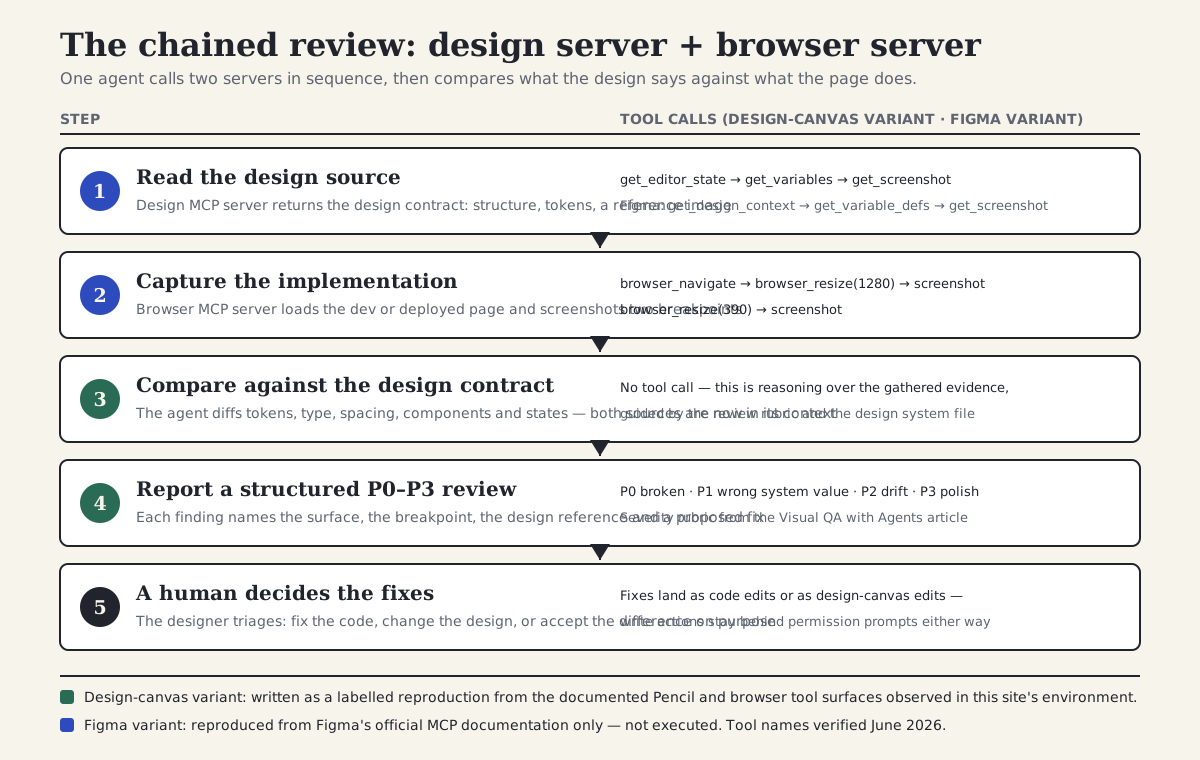
Five steps, two servers, one report. The design-canvas variant is a labelled reproduction from documented tool surfaces; the Figma variant is reproduced from official docs and was not executed.
Section 09
The Figma variant, from the documentation
The same review with Figma as the design source was not executed for this article — no Figma seat or OAuth flow was available in the research or drafting environment — so this section is explicitly a documentation-level walkthrough, assembled from Figma's official MCP server docs as of June 2026 and worth re-checking against them before you rely on a detail.
The configuration is the remote-server entry shown earlier: a URL, no command, OAuth on first use. The documented sequence mirrors the canvas variant. You give the agent a link to the frame or select it in the desktop app; it calls the tool that returns design context for that selection, which arrives as a structured representation of the layout and components rather than an image; it pulls the variable definitions for the same selection so token names and values are explicit; and it takes a screenshot of the frame as the visual reference. The browser half and the comparison are identical to the canvas variant — the design server only changes where the intent comes from.
Two practical cautions from the documentation are worth repeating. Rate limits differ sharply by seat type, and on the lighter seats they are tight enough that a single chained review can consume a meaningful share of a month's allowance — check your plan before making this a daily habit. And because the official server can also write to the canvas, the same permission posture applies as everywhere else in this article: the review chain needs only read tools, so there is no reason to pre-approve anything that creates or modifies frames.
Section 10
Troubleshooting: the predictable failures
MCP setups fail in repetitive, diagnosable ways. Almost every problem you will hit in the first month is one of six, and four of them are variations of something is not running. The table below maps the symptom you see to the cause that is usually behind it; the habit that makes all of them shorter is checking your platform's server status command — /mcp in Claude Code, the equivalents elsewhere — before assuming the problem is in your prompt.
The subtler failures are worth a sentence each. Long sessions can outlive a connection: a design server that worked an hour ago may have gone stale after the desktop app slept, and the fix is simply reconnecting or restarting the session. OAuth tokens for remote servers expire and need a re-authentication pass through the same consent flow as the first time. And occasionally the agent itself is the problem — it calls a tool with a parameter that does not exist or asks the design server for a node that is not selected. That is not a configuration bug; it is a prompting gap, fixed by being explicit about which file, frame or URL you mean.
The local app or process is not running — open Paper or the Pencil editor, or check that the npx command in your config actually runs
No file is open or nothing is selected in the design app — open the file and select the frame before asking
The dev server is not running, or the URL in the prompt is wrong — start it and give the agent the exact URL
The OAuth token expired — re-run the authentication flow from your platform's MCP status command
Stale connection after the app or laptop slept — reconnect the server or restart the session
A prompting gap, not a config bug — name the file, frame and URL explicitly, and correct it once
The six failures that account for most MCP frustration, and the boring fixes that resolve them.
Section 11
Security and permission hygiene
An MCP server is code that runs with access to your tools and whose output lands directly in your agent's context. Treat it the way a careful engineer treats a dependency, because that is what it is. The MCP project publishes its own security best-practices document, and Claude Code's security docs say the quiet part plainly: use servers you trust or wrote yourself, and review what each tool can actually do before connecting it.
The first-order rules are about provenance and scope. Prefer official servers, and verify them in the official registry rather than installing whatever a search result suggests — name collisions and lookalike packages exist here just as they do on npm. Connect servers per project rather than globally, so a client project only sees the servers it needs. Scope the credentials: a Figma OAuth grant or a Miro token should belong to an account with access to the files this project requires, not your whole organization's workspace.
The second-order rule is the one designers tend to miss: content fetched through a server is untrusted input. Text layers in a Figma file, sticky notes on a Miro board, the visible text of a web page — all of it enters the agent's context, and any of it could contain instructions aimed at the agent rather than at human readers. This is prompt injection, and the defense is not paranoia about specific tools; it is keeping consequential actions behind permission prompts so that an instruction smuggled in through a sticky note cannot quietly become a file write, a canvas edit or an outbound request. Read tools can be pre-approved once you trust a server. Write tools — to the canvas, to the file system, to anything — should stay on ask, and the small friction of clicking approve is the feature, not the bug.
Platforms give you the levers to encode this. Claude Code lets a checked-in settings file declare which .mcp.json servers are enabled and which specific tools are allowed without prompting versus always asked about; Gemini CLI has an allowlist setting for which servers may connect at all; OpenCode's enabled flags live in a reviewable JSON file. The example below shows the shape of a reviewed, committed policy: read-only review tools pre-approved, anything that mutates a design behind a prompt.
Projects to inspect
{
  "enabledMcpjsonServers": ["pencil", "playwright"],
  "permissions": {
    "allow": [
      "mcp__pencil__get_editor_state",
      "mcp__pencil__get_variables",
      "mcp__pencil__get_screenshot",
      "mcp__playwright__browser_navigate",
      "mcp__playwright__browser_take_screenshot"
    ],
    "ask": [
      "mcp__pencil__batch_design",
      "mcp__pencil__set_variables",
      "mcp__figma__*"
    ]
  }
}

# The principle, in one line per platform:
# Claude Code  — enable servers and allow specific read tools in checked-in settings
# Gemini CLI   — use the mcp.allowed allowlist to control which servers may connect
# OpenCode     — keep "enabled" flags in opencode.json so server changes show up in review
# Codex CLI    — keep config.toml minimal and review it like any other dotfile change
Section 12
Risks, limits and anti-patterns
MCP removes the copy-paste tax; it does not remove judgment, and it adds a few costs of its own. The most underrated one is context. Tool definitions for every connected server ride along with every request, and tool results — especially screenshots — are large. A session with six servers connected and a dozen full-page captures in its history will reason noticeably worse than a lean one, and some vendors now offer lighter-weight CLI alternatives to their own MCP servers precisely because of token cost. Connect what the task needs, not what the project owns.
The second risk is treating write access casually. The ecosystem's biggest change over the past year is that the major design servers can now modify canvases — Figma writes frames and components, Miro writes to boards, Paper and Pencil edit their files. That is genuinely useful and genuinely riskier than reading. An agent that misreads intent and writes forty wrong stickies to a workshop board, or restructures a Figma page, has created cleanup work that a read-only mistake never could. Keep writes behind prompts, prefer reviewable surfaces (a .pen file in git can be diffed and reverted; a live shared board cannot), and do not chain a write step directly onto an automated review without a human in between.
Three anti-patterns round out the honest list. Do not connect servers as a substitute for a design harness — an agent that can see your Figma file but has no DESIGN.md and no review gates will reproduce the file's pixels and miss its system. Do not build team rituals on top of beta surfaces without a fallback; rate limits, tool names and plan gating for the newest servers are still moving, which is why every claim in this article carries a date. And do not let MCP become the goal. The point is never the protocol; it is that the agent can finally see the same things you see, so that the conversations you have with it can be about design instead of about file transfer.
- Context is finite: every connected server and every screenshot costs tokens; keep sessions lean.
- Write access is the new risk surface: prompts before mutations, reviewable artifacts over shared live surfaces.
- MCP without a harness reproduces pixels, not systems — pair servers with DESIGN.md and review gates.
- Beta servers move: date your team's assumptions and re-verify rate limits and tool names before relying on them.
- If a workflow works without a server — a checked-in token file, a static export — the simpler path is often still the better one.
Section 13
A reusable checklist: connecting a new design server
Everything above compresses into a short procedure you can run the next time a tool you use announces an MCP server. It takes about fifteen minutes, it ends with a working connection your whole team inherits, and it forces the two questions that matter — is this the real server, and what can it write — before the first impressive demo rather than after the first incident.
Run it once for a browser server and once for whichever design tool holds your source of truth, and you have rebuilt the chain in this article for your own project. From there, the workflows are the ones this site keeps returning to: reviews that compare intent to implementation, tokens that stay in sync because something is checking, and design files that an agent can read without you photographing them first.
Projects to inspect
# Connecting a new MCP server — checklist

## Verify
- [ ] The server is published by the vendor (check registry.modelcontextprotocol.io)
- [ ] You know whether it runs locally (command / desktop app) or remotely (URL + OAuth)
- [ ] You have read its tool list and know which tools WRITE to a design surface

## Connect
- [ ] Add it at project scope, in a file the team can review (.mcp.json or equivalent)
- [ ] Authenticate with an account scoped to this project's files, not the whole org
- [ ] Run one read-only call (editor state, a board read, a screenshot) to confirm it works

## Constrain
- [ ] Pre-approve only the read tools you actually use
- [ ] Leave write tools on ask; never blanket auto-approve a server
- [ ] Note rate limits or plan gating, with a date, in the project docs

## Document
- [ ] Record why this server is connected and which workflows use it
- [ ] Add the troubleshooting basics: which app must be running, which URL to use
- [ ] Set a reminder to re-verify capabilities — beta servers change quickly
Sources
Sources & further reading
- MCP specification (2025-11-25)
The current ratified Model Context Protocol specification: tools, resources, prompts, transports and authorization.
- MCP 2026-07-28 release candidate
What is coming in the next spec revision; the mental model in this article is unaffected.
- Official MCP registry
The community registry for checking whether a server is official before installing it.
- Donating MCP to the Agentic AI Foundation
The December 2025 governance announcement: MCP under a Linux Foundation directed fund.
- Figma MCP server documentation
Official docs for the remote and desktop servers, tools and prompts, and code-to-canvas.
- figma/mcp-server-guide
Figma's official guide repository for using the MCP server effectively.
- Miro MCP documentation
Miro's official MCP server and tool reference.
- miroapp/miro-ai
Miro's official repository bundling MCP configuration and Claude Code skills.
- Paper MCP documentation
Paper's local MCP server and its read, write and export tools.
- Pencil documentation
Pencil's .pen format, IDE extension, CLI and MCP usage.
- microsoft/playwright-mcp
Microsoft's official Playwright MCP server for accessibility-tree browser automation.
- ChromeDevTools/chrome-devtools-mcp
Google's official Chrome DevTools MCP server for console, network and performance access.
- Claude Code MCP documentation
claude mcp add, scopes, .mcp.json, OAuth and tool permissions.
- Codex CLI MCP documentation
MCP server tables in config.toml and the codex mcp commands.
- OpenCode MCP documentation
Local and remote MCP server configuration in opencode.json.
- Gemini CLI MCP documentation
mcpServers configuration in settings.json and the mcp.allowed allowlist.
- MCP security best practices
Official guidance on confused-deputy, token passthrough and session-hijacking risks.
- Claude Code security documentation
Prompt-injection safeguards and guidance on trusting MCP servers and their tools.


