Section 01
Why visual QA changes the agent workflow
A generated interface can compile, load, and still fail the design. It can use the right component library while missing the intended hierarchy. It can match the copy but break the rhythm. It can look fine on a wide monitor and fall apart on a small phone. None of those failures show up in a type check or a unit test, and most of them slide straight past a code review because the diff looks reasonable.
Visual QA gives the agent evidence. Instead of asking the agent to judge its own work from code alone, you give it screenshots at fixed widths, an accessibility-tree snapshot, automated check output, and a short statement of the original intent. The review stops being an opinion about the code and becomes a comparison between what a user would actually see and what the design was supposed to do.
This matters most when the agent is not only writing code but also interpreting a design direction. Design quality lives in details — spacing, density, contrast, alignment, state behavior, and whether the page helps the user do the job it was built for. An agent can inspect every one of those details, repeatedly and cheaply, as long as you give it the evidence and a procedure. This article walks through that procedure twice: first as a general workflow, then as a traced review of one real page — the page you are reading right now.
Two boundaries up front. Visual QA with an agent is a review activity, not a license to change the UI; the agent reports findings and a human approves the fix plan before any code moves. And the evidence has to be honest: the captures, commands, and findings in this article are either taken from this repository's real tooling or clearly labeled as something you reproduce on your own machine.
Section 02
The mental model: evidence, comparison, gate
Every useful visual QA setup reduces to three parts. First, an evidence capture step that produces artifacts an agent can read: screenshots at stable viewport widths, an accessibility snapshot of the rendered DOM, console and network notes when something looks broken for non-visual reasons, and the output of automated checks. Second, a comparison step where the agent puts that evidence next to the intent — a reference design, a DESIGN.md, or a written brief — and reports observable differences. Third, a gate where a human reads the prioritized findings and approves what gets fixed.
The order matters. Teams that skip the evidence step ask the agent to critique from code, and the agent obliges with confident guesses about rendering it never saw. Teams that skip the gate let the agent fix its own findings immediately, and taste decisions get made silently inside a diff. The loop in the diagram below keeps both failure modes out: evidence comes before opinion, and approval comes before changes.
The loop also explains why this workflow pairs so well with agents specifically. Capturing the same five routes at three widths, re-running an accessibility scan, and re-reading the same checklist after every fix pass is exactly the kind of repetitive, evidence-heavy work humans do badly on the fourth iteration and agents do identically on the fortieth.
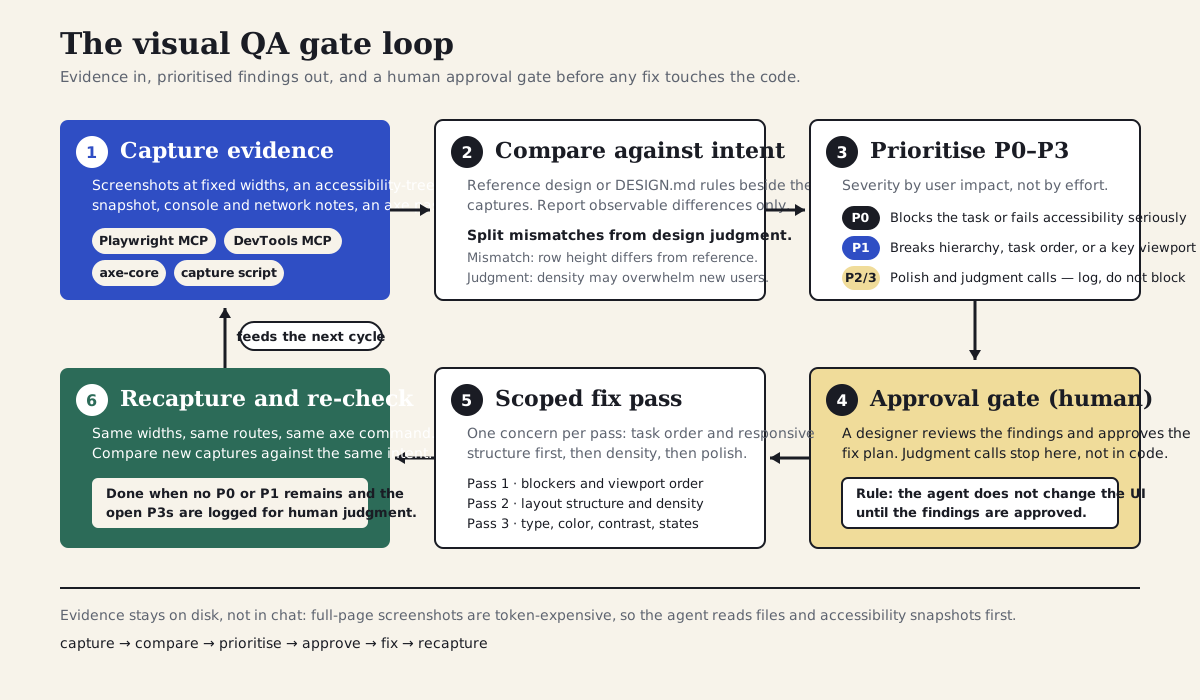
Capture evidence, compare against intent, prioritize P0–P3, pass a human approval gate, apply one scoped fix pass, recapture — and stop only when no P0 or P1 remains.
Section 03
How agents capture evidence today
The capture layer is no longer something you have to invent. Microsoft's Playwright MCP server is the most common way an agent drives a real browser: it exposes tools to navigate, resize the viewport, take screenshots, and — often more usefully — return a structured accessibility snapshot of the page instead of pixels. The snapshot names every landmark, heading, link, and control the way assistive technology sees them, which is exactly the structure an agent needs for layout-order and labeling questions, at a fraction of the token cost of an image.
Google's Chrome DevTools MCP server adds the diagnostics layer. Beyond screenshots and accessibility snapshots, it can read console messages, inspect network requests, and run performance traces that surface Core Web Vitals — the evidence you need when a page looks wrong for reasons that are not strictly visual, such as a font that never loaded or a layout shift caused by a late image. If you have not set up either server before, the MCP for Designers article on this site covers the configuration; this article assumes a working browser connection and focuses on what to do with it.
Anthropic's Claude Code best-practices guidance describes the loop from the agent side: give the model a visual target, give it a way to screenshot its own output, and let it iterate — output typically improves noticeably over the first two or three rounds and then plateaus. That is the same recapture-and-compare loop this article teaches, and it is worth knowing the plateau is expected: after a few rounds the remaining gap is usually a judgment call, not something more iterations will close.
Two practical cautions before you wire any of this up. Full-page screenshots returned into the conversation as base64 are expensive — practitioner reports put a single image at roughly 1,500–2,000 tokens, with one widely cited outlier blog measuring a single full-page capture at 232,000 tokens; either way, a sweep's worth of captures accumulates fast — so save images to disk and let the agent read files or crops, and reach for the accessibility snapshot first when the question is structural. And keep the capture deterministic: animations, lazy-loaded images, and sticky headers all produce captures that differ between runs for reasons that have nothing to do with your changes.
Projects to inspect
Section 04
What to capture
A useful QA packet should include enough evidence for the agent to compare, diagnose, and propose fixes. One desktop screenshot is not enough. Most visual bugs appear when you compare states and widths: the layout that holds at 1440 pixels and collapses at 390, the empty state nobody designed, the focus ring that exists on buttons but not on the filter chips.
Capture the approved reference, the current implementation, and the important states. If the design includes empty states, error states, hover states, loading states, filters, dialogs, or responsive layouts, include them. Then add the non-pixel evidence: the accessibility snapshot or axe output, and one short paragraph reminding the agent what job the page exists to do. The intent paragraph is the cheapest item in the packet and the one most teams forget.
- Reference screenshot or design export for the intended result.
- Implementation screenshots at the same fixed widths every run — this site uses 1440, 768, and 390 pixels.
- Important interaction states: empty, loading, error, selected, expanded, disabled.
- An accessibility snapshot or axe report for the same routes.
- Console and network notes when something renders incorrectly for non-visual reasons.
- A short reminder of the user job and design intent.
Section 05
Create a QA packet the agent can inspect
Visual QA works best when the agent receives a packet, not a pile of screenshots pasted into chat. The packet is a folder: the original intent, reference images, implementation captures with their widths in the filenames, accessibility output, the findings file the agent will write, and the fix plan a human will approve. Keeping it on disk has a second benefit beyond cost — the evidence survives the session, so the next review compares against the same baseline instead of a memory of it.
The packet makes the review repeatable. If a later revision changes the page, the team reuses the same capture script and compares the new evidence against the same intent. This is what prevents visual QA from collapsing into a one-time subjective review that nobody can reproduce three weeks later.
agent-workflows/
└── visual-qa/
    └── article-page-2026-06-01/
        ├── brief.md                  # intent: reading-first article page, DESIGN.md rules that apply
        ├── reference/
        │   └── design-notes.md       # or exported reference frames when they exist
        ├── implementation/
        │   ├── article-1440.png
        │   ├── article-768.png
        │   ├── article-390.png
        │   └── manifest.json         # route, viewport, dimensions per capture
        ├── checks/
        │   ├── axe-article.json      # axe-core output for the route
        │   └── console-notes.md
        ├── findings.md               # written by the agent, prioritized P0–P3
        └── fix-plan.md               # approved by a human before any code changes
Section 06
Capture screenshots with stable viewports
If every QA run uses different viewport sizes, the findings stop being comparable. Pick a small set of standard widths and reuse them; 390, 768, and 1440 pixels catch most layout-order and density issues for content and product pages, and you can add 1024 when tablets matter to your audience.
A capture script is design infrastructure, not engineering convenience. This site keeps one in the repository — scripts/capture-key-pages.mjs — which launches Chromium through Playwright, walks eleven key routes against a local dev server, saves full-page PNGs into designs/page-snapshots/, and writes a manifest recording each capture's route and dimensions. The 1440-pixel baseline referenced throughout this article was produced by exactly these commands on June 1, 2026; the manifest is checked into the repo alongside the images.
The same script pattern extends to multiple widths by looping over viewports before the route loop, or you can skip the script entirely and let the agent drive Playwright MCP directly: resize the browser, navigate, capture, repeat. The script wins when you want the identical evidence set on every run; the MCP route wins when the agent needs to poke at one state interactively.
# 1. Run the site locally
npm run dev                       # next dev on port 3210

# 2. Capture the key pages at the standard desktop width
SNAPSHOT_BASE_URL=http://localhost:3210 npm run agentic:canvas:capture
# → Captured 11 key page snapshots in designs/page-snapshots
#   (full-page PNGs + manifest.json with route, viewport, width, height)

# 3. The script behind that command (scripts/capture-key-pages.mjs, excerpt)
const browser = await chromium.launch()
const page = await browser.newPage({ viewport: { width: 1440, height: 1800 }, deviceScaleFactor: 1 })

for (const [path, slug] of routes) {
  await page.goto(new URL(path, baseUrl).toString(), { waitUntil: "networkidle" })
  await page.screenshot({ path: join(outputDir, `${slug}-desktop.png`), fullPage: true })
}

# 4. For the case study, the same loop runs again at 768 and 390 px
#    (or via Playwright MCP: browser_resize → browser_take_screenshot per width)
Section 07
Case study: reviewing this article's own page
The most honest case study available is the page you are reading. The route /articles/visual-qa-with-agents is rendered by this repository's article template — a sticky site header, a large serif title block, body sections with code and figure blocks, a contents sidebar on desktop, a newsletter band, and a footer. It is a real production page with real constraints, and reviewing it makes the loop self-demonstrating: the findings below are about the surface displaying them.
Here is exactly what is real and what you reproduce yourself. The 1440-pixel full-page captures of this site's key routes, including the article template, were taken on June 1, 2026 with the capture script shown above and are stored in the repository with their manifest. The component-level findings below were verified by reading the actual template code — the site header, the article header and body components, and the figure renderer — and checked against the desktop capture. The 768 and 390-pixel captures and the axe run are commands you run on your own machine against the local dev server; their commands are given verbatim, and any finding that depends on them is labeled as a candidate to confirm rather than a confirmed defect.
That split is not a disclaimer for its own sake. It is the discipline the article is teaching: a QA report should always distinguish what the evidence shows from what the reviewer expects the evidence to show. An agent that cannot make that distinction will state guesses with the same confidence as measurements, and the team will slowly stop trusting the reports.
The review used the packet structure above: the DESIGN.md rules that apply to article pages as the intent, the desktop capture and the template code as evidence, and the observable-difference prompt shown later in this article. One full review pass — reading the code, checking the capture, writing and prioritizing the findings — took roughly forty minutes, most of it spent confirming which findings were defects and which were the design behaving as specified.
Section 08
The findings, prioritized
The review produced five findings worth keeping and no P0. Nothing on the page blocks the core task — reading the article — at any width, which is the first thing the severity rubric forces you to establish before arguing about polish.
The P1 candidate is the sticky header at phone width. The header stacks the logo row above the full primary navigation, and the navigation is nine wrapping links; below the large-screen breakpoint that stack stays pinned to the top of the viewport. At 390 pixels the wrapped links plausibly consume a third or more of the screen and push the article title toward the fold. This is a code-grounded candidate: the stacking and stickiness are verified in the header component, but the actual pixel cost needs the local 390-pixel capture before anyone schedules a fix.
Two P2 findings are verified directly in code. Navigation links carry no aria-current attribute and no active styling, so neither sighted readers nor screen-reader users get any indication of which section they are in — true at every width. And until this upgrade, the article's own figure blocks rendered generic placeholder mockups because no built assets existed for this slug; the desktop capture shows the placeholders. That second finding is also a small lesson in incentives: the defect was instructional enough to keep in the report, and fixing it is part of the upgrade that produced this version of the article.
One finding resolved as design judgment rather than defect. The display titles render at very large sizes with a 0.98 line height, and at 390 pixels a long title wraps to four or five tightly stacked lines. A reviewer who has not read the design system flags it as a typography bug; DESIGN.md specifies exactly this scale and line height for display text, so the correct disposition is a P3 question for a human — does the brand's display treatment earn its cost on small phones? — not a fix ticket. Every review should expect at least one of these, and the report is more trustworthy for containing it.
Finally, a P3 the eye cannot settle: the navigation links use bold muted-foreground text over a translucent, blurred header background. Contrast over a translucent surface depends on what scrolls underneath it, which is precisely the kind of question to hand to axe against the live route rather than to assert from a screenshot. The automated checks also missed something the human pass caught — none of them have an opinion about whether nine top-level navigation links is the right information architecture for a site this size. That stays a human question.
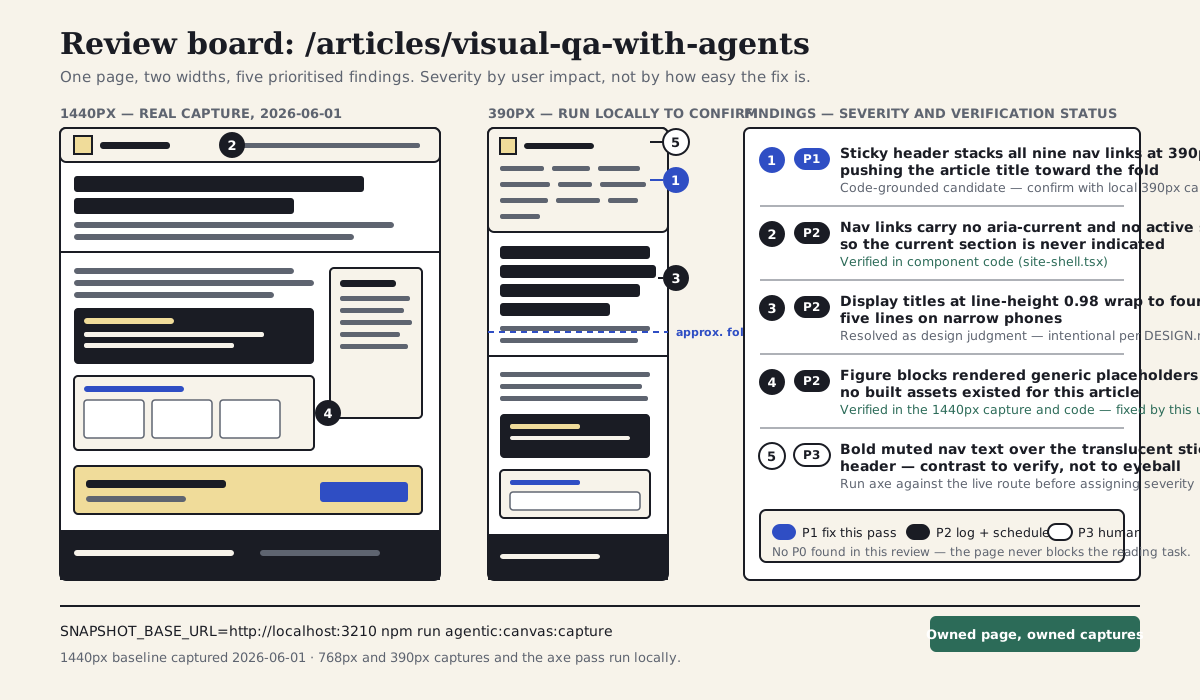
This site's article page wireframed at 1440px (real capture) and 390px (run locally), with five prioritized findings and the verification status of each.
Section 09
The review prompt
The prompt should force observable comparison. Avoid asking whether the design is good. Ask what differs from the stated intent, why it matters to the user, how severe it is, and which changes are safe to make. The version below is the prompt used for the case study, generalized only by swapping the route and intent file names.
Two details carry most of the weight. Naming the evidence files explicitly stops the agent from inventing observations about states it never saw. And the final sentence — do not change the UI until the findings are approved — is the gate. Without it, capable agents will helpfully fix their own findings, and the review stops being a review.
Review the page at /articles/visual-qa-with-agents against the design intent.

Evidence:
- designs/page-snapshots/article-detail-desktop.png (1440px, captured 2026-06-01)
- agent-workflows/visual-qa/article-page-2026-06-01/article-768.png and article-390.png
- agent-workflows/visual-qa/article-page-2026-06-01/checks/axe-article.json
- The rendering code: components/site-shell.tsx, components/article-content.tsx
Intent: DESIGN.md sections 2–10 (color, typography, spacing, layout, components)
       and brief.md (reading-first article page; the title and first paragraph
       should be reachable without scrolling past chrome).

Report only observable differences between the evidence and the intent.
Group findings by layout, typography, spacing, color, content, interaction
states, responsiveness, and accessibility. For each finding include: severity
(P0–P3), the evidence it rests on (file and viewport), user impact, likely
cause in the code, and a concrete fix. Mark each finding as verified
(visible in the evidence) or candidate (expected from code, needs a capture
or axe run to confirm). Separate objective mismatches from design judgment.
Do not change the UI until the findings are approved.
Section 10
Severity levels
Not every mismatch deserves the same response. A two-pixel spacing difference might not matter. A mobile layout that hides the primary action does. Severity keeps the team from polishing details while the product task is still broken, and it gives the approval gate something to act on: P0 stops the release, P1 gets fixed in this pass, P2 gets logged and scheduled, P3 goes to a human for a taste decision.
Severity is assigned by user impact, never by how easy the fix looks. The sticky-header finding in the case study is a one-line layout change, and the placeholder-figure finding required producing two new assets; their severities are unrelated to that effort, and conflating the two is how trivial-but-cosmetic fixes crowd out cheap-but-important ones.
- P0: blocks the user from completing the main task or creates a serious accessibility failure.
- P1: changes the information hierarchy, hides important content, or breaks a key responsive state.
- P2: weakens polish, consistency, or scanability but does not block the main task.
- P3: subjective refinement that needs human design judgment before implementation.
# Severity rubric — assign by user impact, not by fix effort

P0  Blocks the task or fails accessibility seriously.
    Example: primary action unreachable at a supported width; keyboard trap.
    Response: stop the release; fix before anything else ships.

P1  Breaks hierarchy, task order, or a key responsive state.
    Example (this site): sticky header chrome pushing the article title
    toward the fold at 390px (candidate, confirm with capture).
    Response: fix in this pass; recapture before closing.

P2  Weakens polish, consistency, scanability, or programmatic state.
    Example (this site): nav links with no aria-current or active style.
    Response: log it, schedule it, batch related P2s into one pass.

P3  Subjective refinement; the evidence cannot decide it.
    Example (this site): whether the display type scale earns its cost
    on small phones — DESIGN.md says yes; a reviewer may disagree.
Response: route to a human; do not let the agent "fix" taste.Blocks the task or serious accessibility failure — none found on this page
Breaks hierarchy or a key responsive state — sticky header cost at 390px (candidate)
Weakens consistency or programmatic state — missing aria-current on nav links (verified)
Needs human judgment — display type scale on small phones (design intent per DESIGN.md)
Severity keeps the review focused on user impact before polish, with a real example from the case study at each level.
Section 11
Separate objective mismatches from design judgment
Agents tend to mix two kinds of critique: observable mismatch and design preference. Both can be useful, but they should never be reported as the same thing. An observable mismatch says the navigation exposes no current-page state, which the code confirms. A design judgment says the display titles feel oversized on a phone, which the design system explicitly intends. The first can be fixed directly; the second needs a human to decide whether the rule itself should change.
The case study deliberately kept one of each in the final report. That is worth copying: a review that contains only confirmable defects has usually been filtered to look objective, and a review that is mostly taste has not done the comparison work. The mix — clearly labeled — is what a designer can actually act on.
Nav links expose no aria-current or active styling — verified in the header component
Figure blocks rendered placeholders because no assets existed for this slug — visible in the 1440px capture
Header chrome height at 390px pushes the title toward the fold — expected from code, confirm with capture
Display titles wrap to five tight lines on phones — matches the DESIGN.md type scale; question for a human
Is a nine-link primary navigation the right information architecture for a site this size?
Separating evidence from judgment prevents the agent from turning taste into unauthorized changes.
Section 12
Accessibility checks an agent can run
Accessibility is not a separate cleanup stage after visual polish. Many accessibility failures are visual and structural — low contrast, missing focus states, unlabeled controls, color used as the only signal, heading levels that skip — and the same evidence pass that catches layout problems should catch them. The standard engine is axe-core: run it from the command line against a URL with @axe-core/cli, or inside a Playwright spec with @axe-core/playwright so the checks run against real rendered states, including the ones behind interactions.
The commands below are the ones the case study uses against the local dev server. The output excerpt is representative — it shows the shape of an axe report and the kind of finding the case study expects the contrast check to settle — and is labeled as such because the run happens on the local machine, not in the environment that drafted this article. Treat your own first run the same way you would treat a first capture: as the baseline you keep, not a box you tick.
Adjacent gates are worth one sentence each. Lighthouse CI (@lhci/cli) wraps Lighthouse runs in assertions and budgets, so a performance or accessibility score regression can fail a pull request the same way a broken test does. pa11y-ci is a lighter URL-sweep runner suited to checking a list of routes in CI. Both emit JSON an agent can read and translate into the same P0–P3 findings format as the visual review — and none of them prove accessibility on their own. Automated checks catch a meaningful share of issues, but keyboard walkthroughs, screen-reader passes, and real assistive-technology testing remain human work.
# CLI run against the local route (Chromedriver downloads on first run)
npx @axe-core/cli http://localhost:3210/articles/visual-qa-with-agents

# Or inside Playwright, against real rendered states:
#   const results = await new AxeBuilder({ page }).analyze()

# Representative output excerpt (shape of a real axe report; run locally to
# produce the genuine numbers for your baseline):
Violation of "color-contrast" with 2 occurrences!
  Ensures the contrast between foreground and background colors meets
  WCAG 2 AA minimum contrast ratio thresholds. Correct invalid elements at:
  - nav[aria-label="Primary navigation"] > a:nth-child(4)
  - footer .text-muted-foreground > span
  For details, see: https://dequeuniversity.com/rules/axe/4.10/color-contrast

0 violations of "aria-allowed-attr"
0 violations of "landmark-one-main"
0 violations of "page-has-heading-one"
Section 13
Good vs bad QA reports
A weak QA report gives the designer another vague to-do list. A strong QA report gives a fix-ready set of findings with evidence, severity, and scope. The difference matters most when an agent will implement the fixes: if the report says spacing feels off, the next agent may redesign the whole page; if it says the header consumes 38 percent of the 390-pixel viewport because nine links wrap into four rows, the fix can stay narrow and the recapture can prove it worked.
The fastest way to improve report quality is to require every finding to name its evidence — which file, which viewport, which axe rule. Findings that cannot name their evidence are either judgments (fine, label them) or guesses (send them back).
The mobile header feels heavy
P1 (candidate): at 390px the stacked logo row plus nine wrapped nav links consume a large share of the viewport before the title — evidence: article-390.png, site-shell.tsx
Navigation could be more accessible
P2 (verified): no nav link sets aria-current or an active style, so the current section is not indicated visually or programmatically — evidence: site-shell.tsx
The figures look unfinished
P2 (verified): figure blocks render placeholder mockups because no assets exist under public/assets/articles/<slug>/ — evidence: article-detail-desktop.png, article-content.tsx
A useful QA report names evidence, impact, and fix scope.
Section 14
Fix in passes, recapture every time
Do not ask the agent to fix every approved finding at once. Group the work into passes so that fixing color cannot quietly break layout and improving the mobile header cannot change desktop spacing unobserved. For the case-study page, the first pass would address the approved structural findings — the mobile header cost, if the capture confirms it; the second pass would handle programmatic state and consistency, such as aria-current and active styles; the third pass covers polish and any contrast adjustments the axe run demands.
After every pass, recapture with the same commands and re-run the same checks. The recapture is not ceremony; it is the only way to know the fix did what the finding asked and nothing else. On this site the recapture also feeds the repository's other gates — npm run verify for structural checks and npm run agentic:audit for token and slop violations — which is the same layered-gate idea covered in the design-system audits article: each gate catches what it encodes, and only the human catches the rest.
Iteration counts stay small when the findings are precise. Anthropic's own guidance observes that screenshot-driven iteration improves output noticeably for the first two or three rounds; the case-study experience matches that — the expensive part was deciding what counted as a defect, not converging on the fix once it was approved.
- Pass 1: user-task blockers and responsive order.
- Pass 2: programmatic state, labels, and consistency.
- Pass 3: typography, color, contrast, and interaction polish.
- After every pass: recapture at the same widths and re-run the same checks before reporting done.
Section 15
What the tooling itself gets wrong
The capture and check tools have their own failure modes, and a workflow that does not name them ends up debugging its own evidence. Token cost is the first: practitioner reports put a full-page screenshot returned into the conversation as base64 at roughly 1,500–2,000 tokens per image — one outlier blog measured a single capture at 232,000 tokens — and pasted captures silently crowd out the context the agent needs for the actual review. Save captures to disk, pass paths, prefer crops of the region under discussion, and use the accessibility snapshot when the question is structural rather than visual.
Full-page captures of long pages also produce artifacts that look like defects: sticky headers repeated mid-scroll, lazy-loaded images that never fired, animations frozen mid-state, and fonts captured before they swapped. Wait for network idle, disable animations where you can, and treat any finding that only appears in a full-page stitch with suspicion until a viewport-sized capture confirms it.
Automated accessibility checks are necessary and radically incomplete. axe and its relatives test the rules that can be tested mechanically; they cannot tell you whether the focus order makes sense, whether the alt text is useful rather than merely present, or whether the page works with a screen reader in practice. A clean axe report is an entry condition for review, not a result. And the most important anti-pattern is organizational, not technical: letting the agent fix findings the moment it produces them. The whole value of the loop is that a human reads the prioritized report before the UI changes; skip the gate and you have an agent redesigning your product one confident finding at a time.
- Do not paste full-page screenshots into chat; keep evidence on disk and read it from there.
- Do not trust findings that only appear in long full-page stitches; reconfirm with viewport-sized captures.
- Do not treat a clean axe report as proof of accessibility; it is a floor, not a ceiling.
- Do not let the agent apply fixes before a human approves the findings.
- Do not change viewport widths, routes, or check commands between runs; comparability is the point.
Section 16
Know what visual QA cannot prove
Visual QA can catch hierarchy, density, layout, state, and accessibility risks. It cannot prove that the product logic is correct, that the data model is safe, or that users will understand a workflow in the real world. Use the agent for evidence and repeatable checks, then escalate the right questions to humans.
The case study surfaced the same boundary in miniature. The review could establish that the navigation exposes no current-page state and could estimate what the header costs at phone width. It could not decide whether nine top-level destinations is the right structure for this site, whether the display typography is worth its mobile cost, or whether the article index should be filtered by topic once the catalog grows. Those are design and product decisions; the review's job is to put them in front of the person who owns them, with evidence attached.
- Visual QA cannot validate business rules without product context.
- Visual QA cannot replace usability testing for unfamiliar workflows.
- Visual QA cannot decide subjective brand direction without a human taste standard.
- Visual QA cannot prove accessibility by screenshot alone; it needs DOM, keyboard, and assistive-technology checks too.
Section 17
Reusable QA workflow
Use this workflow when an article, prototype, product page, or component needs a serious visual review. The output is a decision artifact: a prioritized list of findings with named evidence and a fix plan a designer can approve. It pairs with the other review-shaped articles on this site — screenshot-to-implementation covers the reference-to-build direction, design-system audits cover the static code-level checks, and MCP for Designers covers wiring the browser tools the capture step relies on.
Start small. One route, three widths, one axe run, one prompt, one prioritized report. The first packet takes an afternoon; every packet after that reuses the same commands, the same widths, and the same rubric — which is exactly what makes the second review cheap and the tenth one trustworthy.
1. Pick the route(s) and fix the widths: 390 / 768 / 1440.
2. Capture: run the capture script against the local server; save PNGs + manifest to the packet folder.
3. Check: run axe (CLI or Playwright) against the same routes; save the report.
4. Add intent: one paragraph on the user job, plus the design-system rules that apply.
5. Review: run the observable-difference prompt; require evidence per finding;
   mark each finding verified or candidate.
6. Prioritize: P0–P3 by user impact; separate mismatches from judgment calls.
7. Gate: a human approves the fix plan. Judgment calls get decided here.
8. Fix in passes: blockers, then structure and state, then polish.
9. Recapture and re-check with the same commands; compare against the same intent.
10. Stop when no P0/P1 remains and open P3s are logged with an owner.
Sources
Sources & further reading
- microsoft/playwright-mcp
Official Playwright MCP server giving agents browser navigation, viewport resizing, screenshots, and accessibility snapshots.
- ChromeDevTools/chrome-devtools-mcp
Google's Chrome DevTools MCP server: screenshots, accessibility snapshots, console messages, network requests, and performance traces.
- Chrome DevTools MCP announcement
Chrome team introduction to using DevTools data as agent evidence, including performance insights.
- Claude Code best practices
Anthropic's guidance on giving agents visual targets and screenshot feedback, and the iteration plateau to expect.
- Playwright accessibility testing documentation
Official guide to running axe-core checks inside Playwright tests with @axe-core/playwright.
- dequelabs/axe-core
The accessibility rules engine behind @axe-core/cli and @axe-core/playwright.
- GoogleChrome/lighthouse-ci
Automated Lighthouse runs with assertions and budgets that can gate pull requests on performance and accessibility scores.
- pa11y/pa11y-ci
CI-oriented accessibility runner for sweeping a list of URLs and failing builds on regressions.
- egghead: AI-driven design workflow with Playwright MCP
Practitioner walkthrough of agent screenshots, visual diffs, and editor rules for design review.
- Building an AI QA engineer with Claude Code and Playwright MCP
Practitioner write-up of an agent-driven QA loop built on Claude Code and Playwright MCP.
- One screenshot, 232,000 tokens
Practitioner report on the token cost of returning full-page screenshots into agent conversations.


